
2. Git 本地基础操作
|
|
2.1. 获取 Git 仓库
获取 Git 仓库通常有两种获取 Git 项目仓库的方式:
1.将尚未进行版本控制的本地目录转换为 Git 仓库;(
git init)2.从其它服务器 克隆 一个已存在的 Git 仓库。(
git clone)
两种方式都会在你的本地机器上得到一个工作就绪的 Git 仓库。
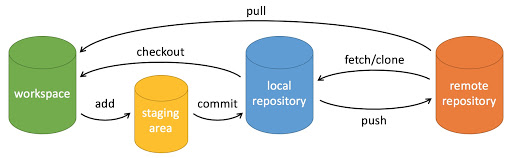
workspace:工作区
staging area:暂存区/缓存区
local repository:版本库或本地仓库
remote repository:远程仓库
2.2. 初始化仓库-- git init
创建一个空的 Git 仓库或重新初始化已有仓库。
$ mkdir GitRepositoryManual
$ cd GitRepositoryManual
$ git init
Initialized empty Git repository in /c/Users/qaz22/GitRepository
/GitRepositoryManual/.git/
该命令创建一个空的 Git 存储库 - 本质上是一个 .git 目录,其中包含 objects 、 refs/heads 、 refs/tags 和模板文件的子目录。还将创建一个引用 master(main) 分支 HEAD 的初始 HEAD 文件。
在 Git 中,我们将 .git 这个目录的内容称为“附属于该仓库的工作树”。文件的编辑等操作在工作树中进行,然后记录到仓库中,以此管理文件的历史快照。( .git 文件夹内的文件可以认为是对仓库操作的日志文件)
2.3. 显示工作树状态 – git status
工作树和仓库在被操作的过程中,状态会不断发生变化。在 Git 操作过程中时常用 git status 命令查看当前状态。(会显示当前分支)
$ git status
On branch main
No commits yet
nothing to commit (create/copy files and use "git add" to track)
git status -s命令可查看精简的文件状态。
$ git status -s
M README
MM Rakefile
A lib/git.rb
M lib/simplegit.rb
?? LICENSE.txt
输出中有两栏,左栏指明了暂存区的状态,右栏指明了工作区的状态。
新添加的未跟踪文件前面有 ?? 标记,新添加到暂存区中的文件前面有 A 标记,修改过的文件前面有 M 标记。
例如,上面的状态报告显示: README 文件在工作区已修改但尚未暂存,而 lib/simplegit.rb 文件已修改且已暂存。 Rakefile 文件已修,暂存后又作了修改,因此该文件的修改中既有已暂存的部分,又有未暂存的部分。
2.4. 向暂存区中添加文件/添加内容到索引 – git add
git add .:将工作区的所有变动的文件提交到暂存区
git add 命令默认不会添加被忽略的文件。如果在命令行上明确指定了任何被忽略的文件,则 git add 会失败,并显示被忽略文件的列表
$ git add README.md
$ git status
# On branch main
#
# Initial commit
#
# Changes to be committed:
# (use "git rm --cached <file>..." to unstage)
#
# new file: README.md
#
2.5. 保存到仓库-- git commit -m 'message'
git commit 命令可以将当前暂存区中的文件实际保存到仓库的历史记录中。通过这些记录,我们就可以在工作树中复原文件。
$ git commit -m 'A new commit at feature-c'
[featrue-c 50ad61b] A new commit at feature-c
2 files changed, 3 insertions(+)
create mode 100644 fecture_c
重要
不妨养成这样一个好习惯:在执行 git commit 命令之前先执行 git diff HEAD 命令,查看本次提交与上次提交之间有什么差别,等确认完毕后再进行提交。同时,需要注意的是,直接执行 git commit 不带参数的命令会打开默认编辑器以对提交进行详细的信息填写。
2.6. 查看当前仓库当前分支的提交历史 – git log
不传入任何参数的默认情况下,git log 会按时间先后顺序列出所有的提交,最近的更新排在最上面。 正如你所看到的,这个命令会列出每个提交的 SHA-1 校验和、作者的名字和电子邮件地址、提交时间以及提交说明。
$ git log
commit ca82a6dff817ec66f44342007202690a93763949
Author: Scott Chacon <schacon@gee-mail.com>
Date: Mon Mar 17 21:52:11 2008 -0700
changed the version number
commit 085bb3bcb608e1e8451d4b2432f8ecbe6306e7e7
Author: Scott Chacon <schacon@gee-mail.com>
Date: Sat Mar 15 16:40:33 2008 -0700
removed unnecessary test
commit a11bef06a3f659402fe7563abf99ad00de2209e6
Author: Scott Chacon <schacon@gee-mail.com>
Date: Sat Mar 15 10:31:28 2008 -0700
first commit
当然,如何提交的记录十分多,而想要查看的记录又只有前面的几条,那么在命令后加入参数以限制记录条数,格式如: git log -2。
同时,通过添加参数-p该命令还可以更加详细地显示每次的提交的不同;添加参数–stat,该命令可以简略地显示每次提交的不同。
$ git log -p -2
commit 9e2e7bc32a8a0112220372a9879dafe6e135ed0e (HEAD -> main)
Merge: 6f42ad3 86b70e6
Author: Eugene-Forest <qazxxxxxxx@outlook.com>
Date: Mon Mar 8 09:21:44 2021 +0800
fix confict
commit 86b70e642e8ba5e102740c1898a16c9d1398634b (fecture-B)
Author: Eugene-Forest <qazxxxxxxx@outlook.com>
Date: Mon Mar 8 09:14:09 2021 +0800
commit a file whose name is date.txt at fecture-B
diff --git a/date.txt b/date.txt
new file mode 100644
index 0000000..e665fe5
--- /dev/null
+++ b/date.txt
@@ -0,0 +1 @@
+Mon Mar 8 09:12:44 2021
$ git log --stat -2
commit 9e2e7bc32a8a0112220372a9879dafe6e135ed0e (HEAD -> main)
Merge: 6f42ad3 86b70e6
Author: Eugene-Forest <qazxxxxxxx@outlook.com>
Date: Mon Mar 8 09:21:44 2021 +0800
fix confict
commit 86b70e642e8ba5e102740c1898a16c9d1398634b (fecture-B)
Author: Eugene-Forest <qazxxxxxxx@outlook.com>
Date: Mon Mar 8 09:14:09 2021 +0800
commit a file whose name is date.txt at fecture-B
date.txt | 1 +
1 file changed, 1 insertion(+)
备注
该命令的参数的使用较多,在这里不一样讲述。
选项参数 |
说明 |
|---|---|
-<n> |
仅显示最近的 n 条提交。 |
–since, --after |
仅显示指定时间之后的提交。 |
–until, --before |
仅显示指定时间之前的提交。 |
–author |
仅显示作者匹配指定字符串的提交。 |
–committer |
仅显示提交者匹配指定字符串的提交。 |
–grep |
仅显示提交说明中包含指定字符串的提交。 |
-S |
仅显示添加或删除内容匹配指定字符串的提交。 |
2.7. 显示提交,提交和工作树等之间的更改 – git diff
如果 git status 命令的输出对于你来说过于简略,而你想知道具体修改了什么地方,可以用 git diff 命令。
查看已暂存和未暂存的修改。(
git diff)比对已暂存文件与最后一次提交的文件差异。(
git diff --staged)自上次提交以来工作树中的更改,比较工作树与最后一次提交的文件差异 (
git diff HEAD)首先,查看已暂存和未暂存的修改:
$ git diff
diff --git a/fecture_c b/fecture_c
index d2ad9d8..6cc1c52 100644
--- a/fecture_c
+++ b/fecture_c
@@ -1 +1,2 @@
In this file, I will tell you some message about the new fecture. Actually, you can think of it as a new README.MD at fecture-c.
+ Will you see me?
备注
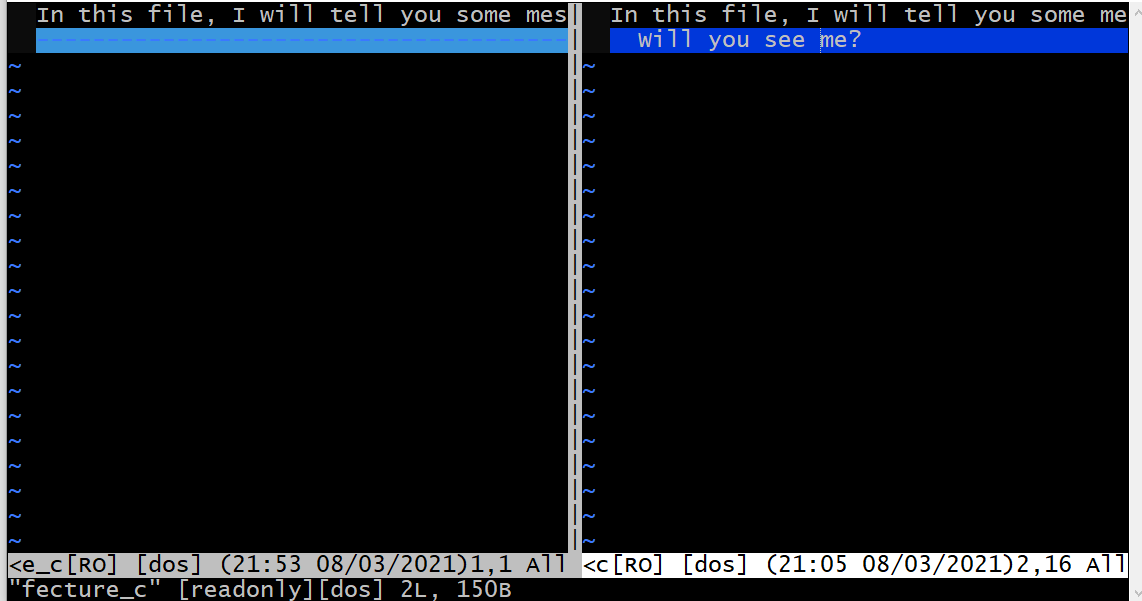
这段代码还可以通过 git difftool 来实现可视化的查看更改。
$ git difftool
This message is displayed because 'diff.tool' is not configured.
See 'git difftool --tool-help' or 'git help config' for more details.
'git difftool' will now attempt to use one of the following tools:
opendiff kdiff3 tkdiff xxdiff meld kompare gvimdiff diffuse diffmerge ecmerge p4merge araxis bc codecompare smerge emerge vimdiff nvimdiff
Viewing (1/1): 'fecture_c'
Launch 'vimdiff' [Y/n]? y
2 files to edit
以下是运行结果:
其次,比对已暂存文件与最后一次提交的文件差异。
$ git add .
$ git diff --staged
diff --git a/fecture_c b/fecture_c
index d2ad9d8..6cc1c52 100644
--- a/fecture_c
+++ b/fecture_c
@@ -1 +1,2 @@
In this file, I will tell you some message about the new fecture. Actually, you can think of it as a new README.MD at fecture-c.
+ Will you see me?
2.8. 关于移除文件的操作 – git rm
在这里,需要了解一下 git rm 以及 git restore 这两个命令。
其中, git restore --staged <file> 命令的效果是将暂存区的某个/某些文件还原到现有的提交(commit)的文件的状态, git restore <file> 命令的效果是将工作区的某个/某些文件还原到现有的暂存区(staged)的文件的状态。

备注
简而言之, git restore 命令是用来恢复文件的。但是,需要注意的是,如果使用这种方法直接恢复工作区或暂存区的文件状态,那么最好确保工作区和暂存区的变动已经暂存到脏工作区(stash)中,避免丢失数据。
git rm 命令用于删除文件。
如果只是简单地从工作目录中手工删除文件,运行 git status 时就会在 Changes not staged for commit 的提示。
git rm 删除文件有以下几种形式:
将文件从暂存区和工作区中删除:
git rm <file>如果删除之前修改过并且已经放到暂存区域的话,则必须要用强制删除选项 -f:
git rm -f <file>(风险大,因为这意味着现有的文件的变动会丢失,无法找回)如果想把文件从暂存区域移除,但仍然希望保留在当前工作目录中,换句话说,仅是从跟踪清单中删除,使用 --cached 选项即可:
git rm --cached <file>
$ git status
On branch featrue-c
Changes to be committed:
(use "git restore --staged <file>..." to unstage)
      new file:   .gitignore
      modified:   fecture_c
$ git rm fecture_c
error: the following file has changes staged in the index:
   fecture_c
(use --cached to keep the file, or -f to force removal)
$ ls
README.md  date.txt  fecture_c  forest.txt  peng/  pwq
$ git rm -f fecture_c
rm 'fecture_c'
$ ls
README.md  date.txt  forest.txt  peng/  pwq
$ git diff

$ git diff --cached
diff --git a/fecture_c b/fecture_c
deleted file mode 100644
index d2ad9d8..0000000
--- a/fecture_c
+++ /dev/null
@@ -1 +0,0 @@
-In this file, I will tell you some message about the new fecture. Actually, you can think of it as a new README.MD at fecture-c.

$ git restore --staged --worktree fecture_c
$ ls
README.md  date.txt  fecture_c  forest.txt  peng/  pwq
$ git diff
$ git diff --cached
$ git rm --cached fecture_c
rm 'fecture_c'
$ ls
README.md  date.txt  fecture_c  forest.txt  peng/  pwq
$ git diff

$ git diff --cached
diff --git a/fecture_c b/fecture_c
deleted file mode 100644
index d2ad9d8..0000000
--- a/fecture_c
+++ /dev/null
@@ -1 +0,0 @@
-In this file, I will tell you some message about the new fecture. Actually, you can think of it as a new README.MD at fecture-c.

$ git status
On branch featrue-c
Changes to be committed:
(use "git restore --staged <file>..." to unstage)
      new file:   .gitignore
      deleted:    fecture_c

Untracked files:
(use "git add <file>..." to include in what will be committed)
      fecture_c
警告
记住,在 Git 中任何 已提交 的东西几乎总是可以恢复的。 甚至那些被删除的分支中的提交或使用 --amend 选项覆盖的提交也可以恢复。 然而,任何你未提交的东西丢失后很可能再也找不到了。
2.9. 关于移动(重命名)文件的操作 – git mv
备注
不像其它的 VCS (版本控制系统 , version control system),Git 并不显式跟踪文件移动操作。 如果在 Git 中重命名了某个文件,仓库中存储的元数据并不会体现出这是一次改名操作。 不过 Git 非常聪明,它会推断出究竟发生了什么。
使用 git mv filename_from filename_to 命令。
$ git status
On branch featrue-c
Changes to be committed:
(use "git restore --staged <file>..." to unstage)
      new file:   .gitignore
      deleted:    fecture_c

Untracked files:
(use "git add <file>..." to include in what will be committed)
      fecture_c
$ ls
README.md  date.txt  fecture_c  forest.txt  peng/  pwq
$ git mv fecture_c feature_c
fatal: not under version control, source=fecture_c, destination=feature_c

$ git add .
$ git mv fecture_c feature_c
$ ls
README.md  date.txt  feature_c  forest.txt  peng/  pwq
$ git diff
$ git diff --cached
...
diff --git a/fecture_c b/feature_c
similarity index 100%
rename from fecture_c
rename to feature_c

$ git status
On branch featrue-c
Changes to be committed:
(use "git restore --staged <file>..." to unstage)
      new file:   .gitignore
      renamed:    fecture_c -> feature_c